Restore or upgrade your firmware with Playdate Utility
You can use the Playdate Utility app to update your Playdate’s software from a Mac or PC. Use it when your Playdate can’t update itself over Wi-Fi.
Why can’t my Playdate update over Wi-Fi? On October 15, 2026, a security certificate used by Playdate OS versions older than 3.0.5 expired. Playdates on those versions can no longer connect to our servers, so they need to be updated by hand. This guide can also help if a regular system update fails or your Playdate keeps crashing.
Already on 3.0.5 or newer? You don’t need this guide. Update as usual from Settings > System > Software Update.
Before you start
You’ll need:
- A Mac or PC
- A USB-C cable (the one included with your Playdate works)
- Your Playdate, charged (plug it in overnight if it hasn’t been used in a while)
Step 1: Find your serial number
Your serial number is in either of these places:
- On the device: Flip out the crank. The serial number is printed in tiny characters inside the well where the crank sits.
- In Settings: On your Playdate, go to Settings > System > Device Info.
It will look something like this: PDU1-Y001234
Step 2: Download your update files
Go to playdatekeys.panic.com and type your serial number into the text field.
Getting your serial number right: Enter the whole thing, starting with
PDU1orPDU4, then the hyphen, then the rest. Any round character is a zero (0), not the letter O. Double-check it before you continue.
Click Generate Key, then download both files:
- A .pdos file, which is the Playdate OS update itself.
- A .pdkey file, which only works with your Playdate.
Save them somewhere easy to find, like your Desktop.
Step 3: Download Playdate Utility
Step 4: Connect your Playdate
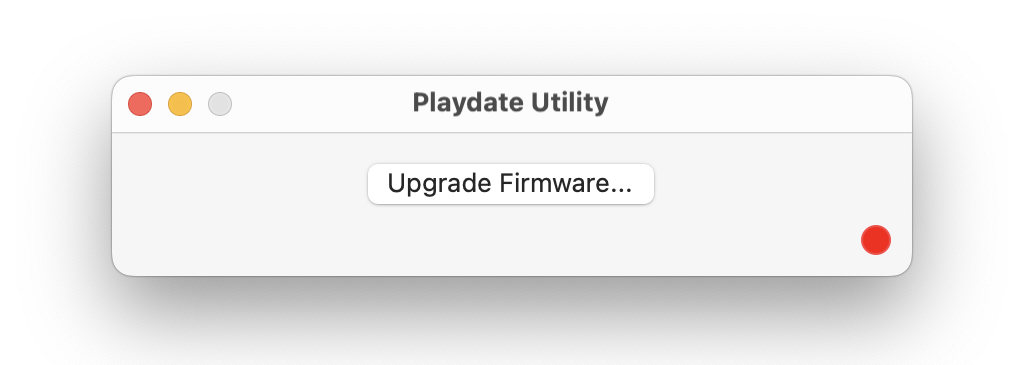
Open Playdate Utility. The red dot in the lower right corner means it doesn’t see your Playdate yet.
Unlock your Playdate, then connect it to your computer with the USB-C cable. The dot turns green when your Playdate is detected.
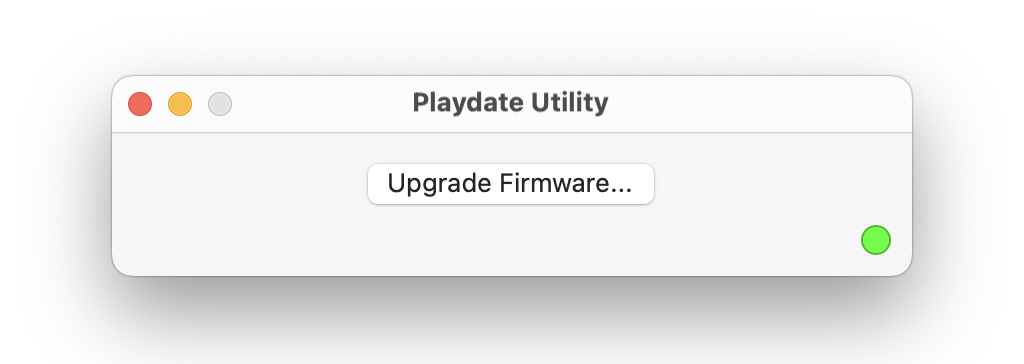
Dot still red? Make sure your Playdate is unlocked. It won’t be detected while it’s locked.
Step 5: Install the update
Click Upgrade Firmware. When asked, choose the two files you downloaded in Step 2:
- The .pdos file
- The .pdkey file
Playdate Utility will start installing the update.
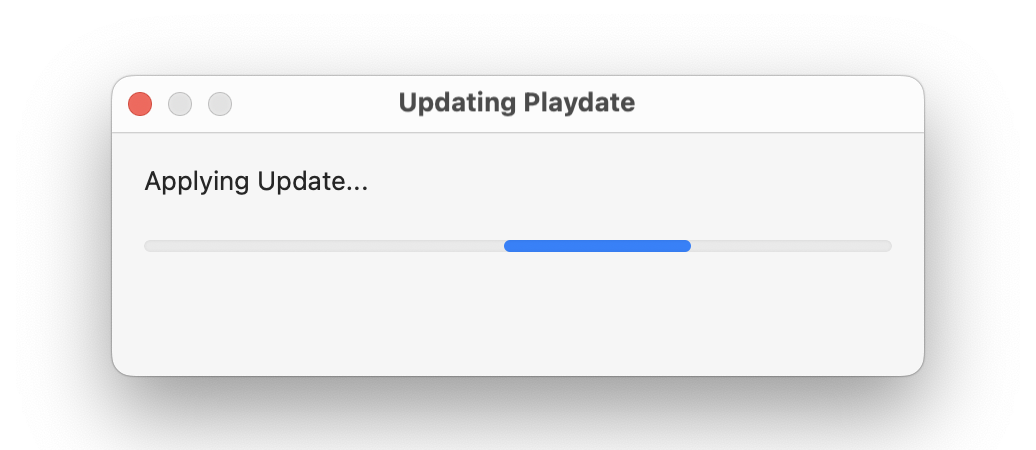
This can take a few minutes, and your Playdate may restart several times. Don’t disconnect your Playdate until it’s finished.
When the update is done, you’ll see a confirmation message:
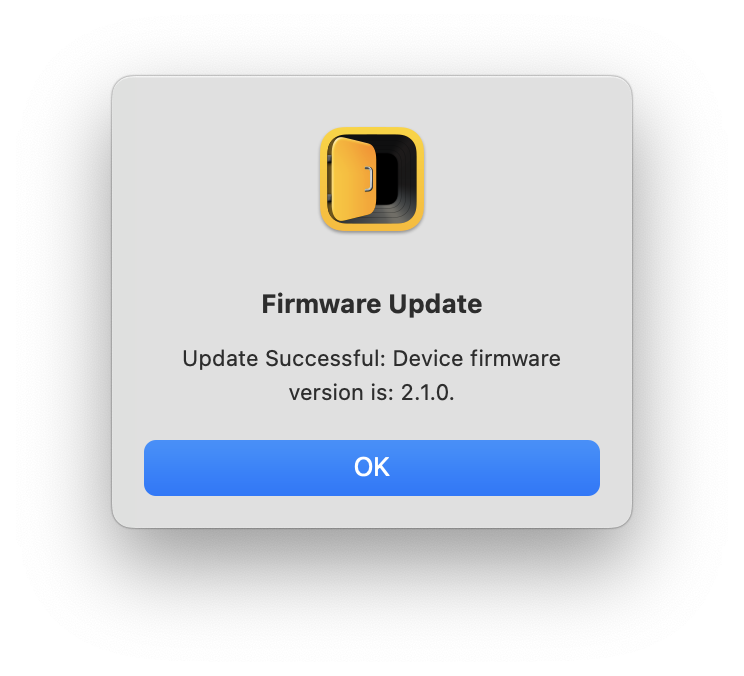
You’re all set!
Troubleshooting
Troubleshooting tip! If the update fails, try again. You can also hold down the Option key when clicking “Upgrade Firmware” to skip version checking and force the update.
Still having trouble? Contact our support team and we’ll help you with the next steps.